
How to organize your teaching life with 4 simple folders
12/20/2025

You know that feeling when you know you have the perfect resource somewhere on your computer, but you can't find it?
Maybe it's those discussion prompts you used last year, or the birthday party checklist you made three months ago, or that really good article about classroom management you saved "somewhere." You end up spending 20 minutes clicking through random folders, getting increasingly frustrated, until you just give up and recreate everything from scratch.
Here's a sobering stat: the average knowledge worker spends about 10 days per year just searching for files. That's nearly three work weeks of your life spent hunting through digital clutter.
I used to be exactly like this. Until I found a filing system called PARA.
What is PARA?
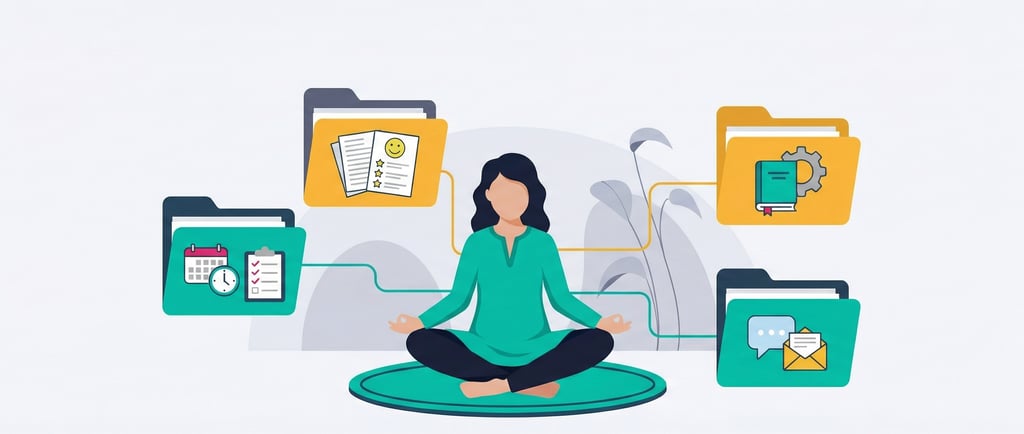
PARA comes from Tiago Forte's book "Building a Second Brain," and it's the simplest organizational system I've ever used. You basically organize everything on your computer into four folders:
P - Projects
A - Areas
R - Resources
A - Archive
That's it. Four folders. Everything you have goes into one of these four categories.
Let me break down what each one means and how I actually use them as a teacher.
Projects: Things With Deadlines
A project is anything that has a defined start date and an end date. It has a deadline attached to it.
For a teacher, this might include:
The current Grade 8 Math Class that you’re teaching this term (which will end in May)
My upcoming report (due next week)
Planning your daughter's 7th birthday party (has to be done before her birthday)
Preparing students for the upcoming debate competition
The key thing about projects is that they're temporary. They will end at some point.
Try to keep between 10-12 active projects at any time. Too few projects and you might lack variety and novelty in your work. Too many and it becomes overwhelming. This range hits the sweet spot.
Inside my Projects folder, I create a separate folder for each project with a clear, specific name. Not "Math Stuff" but "Grade 8 Algebra Unit - Fall 2024." This way, when I'm teaching Grade 8 algebra again next year, I know exactly where to look.
Areas: Things You Need to Maintain
Areas are the ongoing parts of your life that don't have end dates. They need continuous attention and maintenance.
My Areas include:
My Job - This holds my employment letter, CV, promotion documents, and experience letters
Health - Insurance documents, medical reports, prescription records
Finances - Spreadsheets, bill information, tax documents
Home - Apartment lease, warranty documents, appliance manuals
The primary difference between a Project and an Area is that a Project is temporary, whereas an Area is Permanent. Your career is an Area. The specific work you're doing on the annual report is a Project.
Instead of having one massive "Documents" folder where nothing can be found, I now have documents organized by the area of life they belong to. Need my insurance info? It's in Health. Need my employment contract? It's in the “My Job” folder.
Resources: Your Learning Library
Resources are things you're interested in learning about. Topics you're curious about. Ideas you want to explore.
This could be:
Book notes and highlights
Articles you've saved
YouTube videos
Personal thoughts and observations
I have Resource folders for psychology, teaching methodologies, app development, and even one for "weird bugs I've learned about" (don't ask).
Here's the important part: if a resource is related to an active project, it goes in the Project folder instead. If I'm planning my Grade 8 algebra unit and I find a great video about teaching quadratic equations, that video goes in the "Grade 8 Algebra Unit" project folder, not in the Resources folder.
Resources are for your broader interests outside of immediate projects.
Archive: Where Completed Things Go
This is the most important folder, and here's why: it keeps your other folders clean.
When a project is done, it goes to the Archive. When you switch jobs, and that Area is no longer relevant, it is archived. When an interest no longer engages you, it goes to the Archive.
The Archive folder serves two purposes:
You're not deleting anything (you might need it later)
Your active folders stay between that sweet spot of 10-15 projects
Every few months, I look at my Projects folder. If something has been sitting there untouched, I ask myself, "Is this still active?" If not, it goes to the Archive folder.
How to Actually Implement This (Without Losing Your Mind)
Here's what most people do wrong: they try to organize everything they already have into these four folders. They spend a weekend sorting through years of files. They burn out halfway through and give up. Don't do this.
Instead, do this:
Step 1: Create a folder called "Archive" and move all the files currently on your computer into it. Everything. Your entire Documents folder, Desktop, and Downloads—all of it goes into Archive.
Step 2: Create your three other folders: Projects, Areas, and Resources. They'll be empty. That's fine.
Step 3: Go about your normal life.
When a new project arises, create a folder for it in the Projects section. When you need a file from your old system, go to Archive, search for it, pull it out, and put it in the appropriate new folder.
This is how you gradually migrate to the new system without the massive upfront time investment. You're essentially reorganizing your files as needed, not all at once.
If you need something for your current Grade 9 biology unit, you'll search the Archive, find those old biology resources, and move them to your new "Grade 9 Biology Unit - Spring 2025" project folder.
If you need your rent agreement, you'll find it in the Archive and move it to a new "Apartment" folder inside Areas.
Over time, your Archive folder shrinks, and your organized folders grow—but you're only touching the files you actually use.
Why This Works for Teachers
As teachers, we accumulate a wealth of resources. Lesson plans, worksheets, discussion prompts, project rubrics, parent communication templates. We create something brilliant for one class and think, "I'll definitely use this again next year."
Then next year comes, and we can't find it. So we remake it. Or we don't use it at all.
PARA fixes this because it gives you exactly three places to look:
Is it for something I'm actively working on? → Projects
Is it part of my ongoing life? → Areas
Is it something I'm learning about? → Resources
And if you're not actively using it, it's in the Archive, where it won't clutter your view but remains accessible if needed.
Give it a try. Start with that Archive folder today. See how it feels to have a clean slate while knowing you haven't lost anything.
You might just get those 10 days of your life back.
Join the thousands who never let a classroom without a teacher


Platform
Company
Careers
Resources
FAQs
© 2025 covur.app. All rights reserved.